

Intercom Salesforce Integration: Complete Setup Guide & Best Practices
Customer conversations rarely happen in a single system.
A visitor may start a conversation in Intercom, become a qualified lead, purchase a product through Salesforce-managed sales processes, and later contact support again. When customer communication and CRM data remain disconnected, sales representatives lack conversation history, support agents work without complete customer context, and teams spend valuable time manually updating records.
The Intercom Salesforce integration helps bridge this gap by connecting customer messaging with CRM data. Instead of switching between multiple applications, teams can view relevant customer information in context, automate repetitive workflows, and maintain more consistent customer records across both platforms.
In this guide, you’ll learn:
- what the Intercom Salesforce integration is;
- what the native integration can and cannot do;
- how to configure it correctly;
- how customer data is synchronized;
- common implementation challenges;
- best practices for maintaining a reliable integration;
- when a custom Salesforce–Intercom integration is the better choice.
Whether you’re implementing the integration for the first time or improving an existing setup, understanding how data flows between Intercom and Salesforce is essential for building reliable sales and customer support processes.
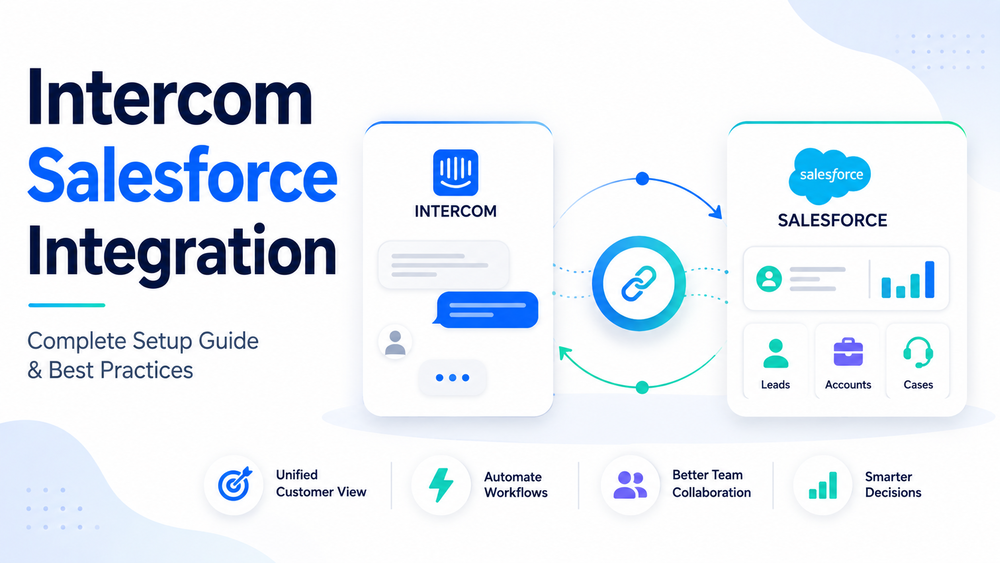
What Is the Intercom Salesforce Integration?
The Intercom Salesforce integration is a native integration that connects Intercom with Salesforce CRM.
Rather than synchronizing every piece of information between the two platforms, the integration supports a set of predefined workflows that allow organizations to exchange selected customer data, display Salesforce information inside Intercom, create CRM records, and streamline collaboration between sales and support teams.
A typical workflow looks like this:
Website Visitor
        │
        ▼
   Intercom Messenger
        │
 Customer Conversation
        │
        ▼
Lead Qualification
        │
        ▼
 Salesforce CRM
   │            │
   ▼            ▼
 Sales      Customer Support
Depending on your configuration, the native integration supports workflows involving:
- Intercom Leads and Salesforce Leads
- Intercom Users and Salesforce Contacts
- Intercom Companies and Salesforce Business Accounts
- selected customer and company attributes
- Salesforce Cases created from Intercom conversations
- Salesforce Tasks used to log conversation activity
It also allows Intercom users to view live Salesforce information directly inside the Intercom Inbox, reducing the need to switch between applications while handling customer conversations.
It’s important to understand that the integration is workflow-driven rather than database replication. Each mapped field has a configured synchronization direction, and not every Salesforce object or field type is supported by the native application.
Organizations with more advanced requirements—such as custom Salesforce objects, ERP integrations, or complex orchestration across multiple systems—may need a custom integration built with the Salesforce REST API and the Intercom API, or implemented through middleware platforms.
You can learn more in the official documentation:
Benefits of Integrating Intercom with Salesforce
Connecting Intercom and Salesforce helps sales, support, and customer success teams work from a more consistent set of customer information while reducing repetitive manual work.
The biggest benefit isn’t simply moving data between platforms—it’s improving how teams collaborate throughout the customer lifecycle.
| Without Integration | With a Properly Configured Integration |
|---|---|
| Customer information is spread across multiple systems | Relevant CRM information is available during customer conversations |
| Manual creation of Leads and Cases | Automated Lead and Case workflows |
| Limited visibility into customer history | Better context for sales and support teams |
| Repetitive data entry | Reduced manual administrative work |
| Inconsistent customer information | Better consistency across mapped customer records |
Unified Customer Context
Support agents often need access to Salesforce data while speaking with customers.
With the native integration, they can view relevant CRM information directly inside the Intercom Inbox without leaving the conversation. Depending on the Salesforce configuration, this may include account information, ownership details, customer status, and other mapped attributes.
Providing customer context where conversations happen helps agents resolve issues more efficiently while reducing unnecessary application switching.
Faster Lead Qualification
Intercom is frequently used to engage website visitors before they become sales opportunities.
Qualified conversations can trigger the creation of Salesforce Leads, allowing sales teams to continue the qualification process without manually creating CRM records.
This reduces response time and helps ensure promising opportunities enter the sales pipeline more quickly.
If you’re integrating multiple business systems with Salesforce, it’s worth following our guide on Salesforce API Integration Best Practices.
Improved Customer Support Workflows
The integration supports workflows that connect customer conversations with Salesforce activities.
For example, organizations can create Salesforce Cases directly from Intercom conversations or log conversations as Salesforce Tasks for future reference.
This improves visibility across customer interactions while helping support teams maintain better documentation inside Salesforce.
Reduced Manual Data Entry
Without an integration, employees often copy customer information between systems, increasing the risk of inconsistent or outdated records.
By automating supported workflows, organizations can reduce repetitive administrative work and improve the consistency of mapped customer data.
However, maintaining data quality still requires clear ownership rules, proper field mapping, and ongoing governance.
As your Salesforce ecosystem grows, it’s important to establish a scalable Salesforce Data Integration strategy.
Better Foundation for Automation and AI
Connecting CRM data with customer communication creates a stronger foundation for automation.
Organizations can use synchronized customer information to improve routing, segmentation, workflow automation, and AI-assisted customer engagement. The exact capabilities depend on how Salesforce, Intercom, and any AI tools are configured within the overall architecture.
If you’re planning to leverage AI capabilities within Salesforce, our guide explains how Agentforce, Data Cloud, and AI Cloud work together.
How to Set Up the Intercom Salesforce Integration
Installing the integration itself is relatively straightforward. Most implementation issues occur later because of inconsistent customer data, incorrect field mappings, insufficient permissions, or unclear ownership of synchronized information.
Preparing both environments before enabling synchronization will significantly reduce long-term maintenance.
Step 1. Prepare Your Salesforce Environment
Before connecting Intercom, review your Salesforce configuration.
At a minimum, verify that you have:
- a Salesforce edition with API access;
- sufficient administrative permissions;
- access to Leads, Contacts, Accounts, Tasks, and Cases;
- a stable Salesforce user that will authorize and own the integration.
Many organizations choose to use a dedicated integration user instead of connecting the application through an individual administrator’s account. This simplifies auditing, reduces operational risk, and helps avoid disruptions if employee permissions change.
If your Salesforce organization uses duplicate management rules, validation rules, required fields, custom objects, or custom automations, review how these configurations may affect synchronization before enabling the integration.
For secure authentication, follow our Salesforce OAuth 2.0 Best Practices guide.
Step 2. Install the Intercom Salesforce App
The native integration is installed directly from the Intercom App Store.
During setup, you’ll authorize your Salesforce organization using OAuth and grant the permissions required by the integration.
After the connection is established, Intercom allows you to configure customer identity mapping, field synchronization, Lead creation, Case management, Task logging, and additional workflow settings.
For the complete installation process, refer to the official Intercom guide.
Installing the application does not automatically synchronize all historical customer data. Existing records may require separate review or migration planning depending on your implementation strategy.
Step 3. Configure Identity Mapping and Field Mapping
| Intercom Record or Action | Salesforce Record or Action |
|---|---|
| Intercom Lead | Salesforce Lead |
| Intercom User | Salesforce Contact |
| Intercom Company | Salesforce Business Account |
| Supported Intercom Attribute | Compatible Salesforce Field |
| Intercom Conversation | Salesforce Task (when enabled) |
| Intercom Conversation | Salesforce Case (when configured) |
Rather than synchronizing every available field, focus on the information that supports your business processes.
A smaller, well-planned mapping configuration is easier to maintain, produces fewer synchronization conflicts, and simplifies future troubleshooting.
Where possible, use stable customer identifiers instead of relying solely on email addresses, particularly when synchronizing company records.
Step 4. Configure Synchronization
After mapping records and fields, configure how information should move between Intercom and Salesforce.
The native integration supports synchronization for selected mapped attributes, while workflow features can create Salesforce Leads, Cases, or Tasks based on customer interactions.
It’s also important to define which platform owns each synchronized field.
For example:
- Salesforce may be the source of truth for account information.
- Intercom may manage communication preferences.
- Product usage information may remain in another business system.
Avoid configuring both systems to overwrite the same field unless there’s a clear business requirement.
Finally, remember that synchronization behavior depends on the configured workflow and mapped attributes. Not every object is synchronized bidirectionally, and existing historical records are not automatically reconciled when the integration is first installed.
Before deploying the integration to production, review our Salesforce Integration Security Best Practices guide.
Common Use Cases
The native Intercom Salesforce integration supports a variety of customer-facing workflows. While the exact implementation depends on your business processes, the following are among the most common use cases.
Sales Lead Qualification
Intercom is often the first touchpoint for potential customers visiting your website.
When a conversation meets predefined qualification criteria, the integration can create a Salesforce Lead, allowing sales teams to continue qualification without manually transferring customer information.
This reduces response times, improves pipeline visibility, and minimizes manual CRM updates.
If your sales process includes multiple business systems, consider following our Salesforce API Integration Best Practices guide.
Customer Support and Case Management
Support agents frequently need CRM information while assisting customers.
With the native integration, agents can view relevant Salesforce information directly inside the Intercom Inbox and create Salesforce Cases without leaving the conversation.
Keeping customer context and support workflows connected improves response quality while reducing unnecessary switching between applications.
For organizations building secure customer support integrations, we also recommend reading our Salesforce Integration Security Best Practices guide.
Customer Success
Customer success teams can combine Salesforce account information with Intercom conversations to support onboarding, customer health monitoring, renewals, and proactive engagement.
Having CRM and messaging data available together enables more personalized customer interactions throughout the customer lifecycle.
Conversation Logging
Organizations that require customer activity history inside Salesforce can configure the integration to log Intercom conversations as Salesforce Tasks.
This improves visibility across customer interactions while reducing manual documentation.
Common Challenges and Best Practices
Installing the integration is only the beginning. Long-term success depends on maintaining clean customer data, clearly defining ownership, and monitoring synchronization as business processes evolve.
Prevent Duplicate Records
Duplicate Leads and Contacts remain one of the most common CRM integration challenges.
To reduce duplicates:
- define a consistent identity matching strategy;
- configure Salesforce Duplicate Management rules;
- avoid creating records from multiple independent sources;
- periodically review synchronized customer records.
Define a Source of Truth
Every synchronized field should have a clearly defined owner.
For example:
| Data | Recommended Source |
|---|---|
| Account information | Salesforce |
| Communication preferences | Intercom |
| Product usage | Product Platform |
| Billing information | ERP or Billing System |
Clearly assigning ownership reduces synchronization conflicts and improves long-term data quality.
If your Salesforce environment integrates several business applications, our Salesforce Data Integration Guide explains how to design a scalable integration strategy.
Use a Dedicated Integration User
Whenever possible, authorize the integration using a dedicated Salesforce integration user instead of an individual administrator account.
This simplifies:
- auditing;
- permission management;
- troubleshooting;
- operational continuity.
For secure authentication and authorization, review our Salesforce OAuth 2.0 Best Practices article.
Keep Field Mapping Simple
Synchronizing more fields does not necessarily create a better integration.
Instead:
- synchronize only business-critical data;
- remove unused mappings;
- periodically review custom fields;
- document mapping decisions.
A smaller mapping configuration is easier to maintain and significantly reduces synchronization issues.
Test Before Production
Before enabling synchronization across production data, validate your configuration using a controlled testing environment whenever possible.
Verify that:
- Leads are created correctly;
- Contacts update successfully;
- field mappings work as expected;
- Cases are created correctly;
- Tasks contain the expected information;
- validation rules do not block synchronization.
Starting with a small group of test records helps identify configuration issues before they affect production users.
Native Integration vs. Custom Integration
The native Intercom Salesforce integration covers many standard CRM workflows, but it is not designed for every business scenario.
| Native Integration | Custom Integration |
|---|---|
| Fast implementation | Fully customized solution |
| Lower maintenance | Greater flexibility |
| Supports standard Salesforce workflows | Supports custom objects and complex business logic |
| Minimal development effort | Requires development and ongoing maintenance |
| Best for standard sales and support processes | Best for enterprise integrations and advanced automation |
A custom integration may be the better choice if your organization needs to:
- synchronize custom Salesforce objects;
- integrate ERP or billing systems;
- connect multiple Salesforce organizations;
- implement advanced routing logic;
- process large event volumes;
- build custom reporting or analytics;
- orchestrate workflows across several business systems.
Conclusion
The Intercom Salesforce integration helps organizations connect customer communication with CRM data, enabling more efficient collaboration between sales, support, and customer success teams.
The native integration supports many common business processes, including Lead creation, Case management, conversation logging, and customer data synchronization. When configured with clear ownership rules, appropriate security controls, and well-designed field mappings, it can significantly reduce manual work while improving customer visibility across teams.
Organizations with custom Salesforce objects, enterprise reporting requirements, or complex multi-system architectures should evaluate whether a custom integration better meets their business needs.
A successful integration is not measured by how much data is synchronized, but by ensuring the right information reaches the right people at the right time.
If you’re planning an Intercom–Salesforce integration or extending the native capabilities with custom development, the Success Craft team can help design, implement, and support a secure solution tailored to your business requirements.
Does Intercom integrate directly with Salesforce?
Yes. Intercom provides a native Salesforce integration that supports workflows such as Lead creation, Case management, conversation logging, and displaying Salesforce data inside the Intercom Inbox.
What data can Intercom synchronize with Salesforce?
Depending on your configuration, the integration supports:
- Intercom Leads and Users
- Salesforce Leads and Contacts
- Intercom Companies and Salesforce Business Accounts
- selected mapped customer attributes
- Salesforce Cases
- Salesforce Tasks
Not every Salesforce object or field type is supported by the native application.
Is the Intercom Salesforce integration bidirectional?
The integration supports synchronization in both overall directions. However, each mapped attribute has a defined synchronization direction—either from Intercom to Salesforce or from Salesforce to Intercom.
Salesforce changes are typically checked periodically, while eligible Intercom changes trigger updates according to the configured workflow.
Can Intercom create Salesforce Leads and Cases?
Yes. Organizations can configure the integration to create Salesforce Leads from qualified conversations and create Salesforce Cases from Intercom Inbox conversations.
When should I choose a custom Intercom Salesforce integration?
A custom integration is recommended when your organization requires:
- custom Salesforce objects;
- ERP or billing integrations;
- advanced workflow automation;
- enterprise reporting;
- multiple Salesforce organizations;
- unsupported business processes.
In these scenarios, Salesforce APIs provide significantly greater flexibility than the native integration.