

HubSpot Salesforce Integration: Complete Setup Guide & Best Practices
HubSpot and Salesforce are two of the most widely used platforms for marketing, sales, and customer relationship management. HubSpot helps businesses attract, nurture, and qualify leads, while Salesforce enables sales teams to manage opportunities, customer relationships, and revenue pipelines.
When these platforms operate independently, businesses often face duplicate records, inconsistent customer information, manual data entry, and limited visibility into the customer journey. Marketing may generate qualified leads without sales knowing their engagement history, while sales teams may close deals without marketing understanding which campaigns influenced the conversion.
The HubSpot Salesforce Integration connects both platforms, allowing marketing and sales teams to work with synchronized customer data and automated workflows. Depending on your business requirements, the native integration supports configurable synchronization for standard and custom CRM objects, enabling one-way or two-way data sync.
Official HubSpot installation guide
In this guide, you’ll learn how the integration works, which objects can be synchronized, how to configure data synchronization correctly, common implementation challenges, and the best practices for building a secure and scalable HubSpot–Salesforce integration.
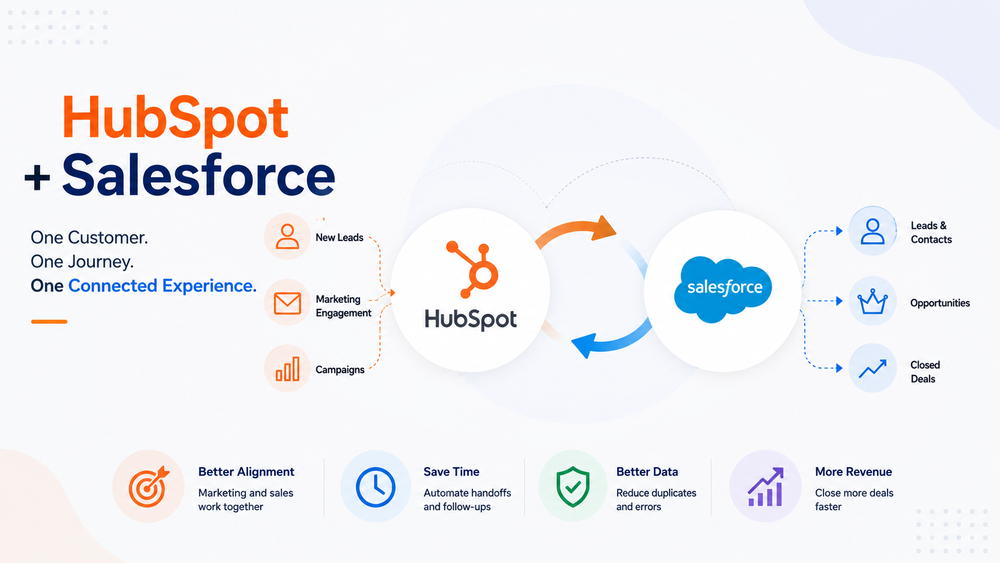
What Is the HubSpot Salesforce Integration?
The HubSpot Salesforce Integration is HubSpot’s native connector that synchronizes CRM data between HubSpot and Salesforce.
Instead of manually exporting spreadsheets or updating customer records in multiple systems, both platforms can automatically exchange information according to configurable synchronization rules.
The integration is commonly used to synchronize:
- Contacts
- Leads
- Companies
- Accounts
- Deals
- Opportunities
- Tasks
- Activities
- Custom Objects (supported editions)
Unlike one-time imports or exports, the native connector continuously synchronizes records, helping marketing and sales teams work with the latest customer information.
However, HubSpot is only one part of many organizations’ integration landscape. Businesses often connect Salesforce with ERP systems, support platforms, accounting software, and custom applications. If you’re evaluating broader integration strategies, our Salesforce Data Integration: 7 Methods & Best Practices guide explains when to use native connectors, APIs, MuleSoft, Salesforce Flow, ETL, or Salesforce Connect.
You can also review the integration capabilities in the official HubSpot Marketplace
Benefits of Integrating HubSpot with Salesforce
A properly configured integration provides much more than automatic record synchronization.
Better Marketing and Sales Alignment
Marketing teams continue working in HubSpot while sales teams remain in Salesforce. Instead of maintaining separate customer databases, both departments share synchronized information, improving collaboration and reducing communication gaps.
Automated Lead Management
When a visitor submits a form or reaches a qualifying lead score in HubSpot, the integration can automatically create or update a Salesforce Lead. Sales representatives receive qualified leads faster without manual intervention.
Reduced Manual Data Entry
Without integration, employees often copy customer information between systems, increasing the risk of human error and duplicate records.
Automated synchronization eliminates repetitive administrative work while improving data consistency across both platforms.
Better Reporting and Attribution
Connecting marketing and sales data makes it easier to understand which campaigns generate qualified leads, opportunities, and revenue.
Marketing teams gain insight into the full customer lifecycle instead of measuring only form submissions or website conversions.
Improved Customer Experience
A unified customer record gives every team more context. Sales representatives can review marketing engagement before contacting a prospect, while marketers can understand how leads progress through the sales pipeline.
Which Objects Can Be Synced?
One of the most common implementation questions is which CRM objects the native integration supports.
Although available functionality depends on your HubSpot subscription and configuration, the integration typically supports the following objects:
| HubSpot | Salesforce |
|---|---|
| Contacts | Leads / Contacts |
| Companies | Accounts |
| Deals | Opportunities |
| Tasks | Tasks |
| Activities | Activities |
| Custom Objects | Custom Objects (supported editions) |
Each object has its own synchronization behavior, mapping options, and conflict resolution rules.
For example:
- HubSpot Contacts can synchronize with Salesforce Leads or Contacts.
- HubSpot Companies typically synchronize with Salesforce Accounts.
- HubSpot Deals can be associated with Salesforce Opportunities, although the exact synchronization behavior depends on your HubSpot subscription, object configuration, and mapping settings.
- Activities and Tasks can also be synchronized to improve visibility across both platforms.
Before enabling synchronization, decide which platform should manage each type of business data.
A common approach is:
| Business Data | System of Record |
|---|---|
| Marketing Properties | HubSpot |
| Campaign Engagement | HubSpot |
| Lead Status | Salesforce |
| Opportunities | Salesforce |
| Revenue Data | Salesforce |
Defining ownership before enabling synchronization helps prevent unnecessary conflicts later.
One-Way vs Two-Way Sync
The HubSpot Salesforce integration supports multiple synchronization strategies depending on your business processes.
| Sync Type | Best For |
|---|---|
| HubSpot → Salesforce | Marketing-first organizations |
| Salesforce → HubSpot | Sales-first organizations |
| Two-Way Sync | Organizations using both platforms equally |
HubSpot → Salesforce
This configuration is commonly used when HubSpot serves as the primary lead generation platform.
Marketing qualifies leads before passing them to Salesforce, where sales representatives continue the customer journey.
Salesforce → HubSpot
Some organizations use Salesforce as their primary CRM while relying on HubSpot for marketing automation.
Salesforce remains the system of record, while HubSpot receives customer information for email campaigns, segmentation, and nurturing.
Two-Way Sync
Many organizations eventually implement two-way synchronization.
Changes made in either platform can automatically update the corresponding record in the other system, reducing manual updates and improving data consistency.
However, two-way synchronization isn’t always the best choice. If both platforms update the same fields without clearly defined ownership rules, synchronization conflicts can occur, causing one system to overwrite the other’s data.
Before enabling two-way sync, define a clear system of record for every important business object and field.
Before You Start
Many synchronization issues originate long before the integration is installed.
Review the following areas before connecting HubSpot and Salesforce.
Clean Duplicate Records
Synchronizing duplicate Contacts or Companies only spreads poor-quality data between both systems.
Merge or remove duplicates before enabling synchronization.
Define the System of Record
Clearly determine which platform owns each business object and field.
This is one of the most important architectural decisions in any CRM integration project.
Review Existing Automation
Review Salesforce Flows, validation rules, assignment rules, workflows, and HubSpot automation before enabling synchronization.
Poorly planned automation can create update loops or unintended record changes.
If your Salesforce environment already includes ERP systems, customer support platforms, or other third-party integrations, review how the new HubSpot connector will interact with those existing integrations.
Our Salesforce Data Integration: 7 Methods & Best Practices guide explains how to design scalable integration architectures involving multiple business systems.
Check User Permissions
Ensure the integration user has the required permissions to create, update, and synchronize all necessary objects and fields.
Following the principle of least privilege is recommended. For additional guidance, see our Salesforce Integration Security Best Practices article.
Step 1. Install the HubSpot Salesforce Integration
Installing the native connector is straightforward.
The process typically includes:
- Connect your HubSpot account.
- Authenticate with Salesforce.
- Grant the required permissions.
- Verify the connection.
- Review the default synchronization settings.
HubSpot provides a detailed installation walkthrough in its official documentation
Step 2. Configure Data Sync
After installation, the most important task is configuring Data Sync. This determines what data is synchronized, how it is synchronized, and how synchronization conflicts are resolved.
HubSpot allows administrators to configure:
- synchronization direction;
- object-level synchronization;
- field mappings;
- sync filters;
- conflict resolution rules;
- inclusion lists.
Rather than synchronizing every record immediately, start with a limited group of records and validate the results before expanding synchronization across your entire CRM.
Use Sync Filters and Inclusion Lists
One of the most effective ways to maintain a clean CRM is to synchronize only the records that matter.
Instead of syncing every contact, consider synchronizing only:
- Marketing Qualified Leads (MQLs)
- Enterprise accounts
- Active customers
- Contacts that meet specific lifecycle criteria
Using Sync Filters and Inclusion Lists reduces unnecessary records, improves synchronization performance, and minimizes duplicate data.
Step 3. Configure Field Mapping
Field mapping determines how data is transferred between HubSpot and Salesforce. A well-designed mapping strategy ensures that both platforms use consistent information and reduces synchronization errors.
While the native integration includes default mappings for standard CRM objects, most organizations also need to configure custom properties and Salesforce custom fields.
| HubSpot Property | Salesforce Field |
|---|---|
| Contact | Lead / Contact |
| Company | Account |
| Deal | Opportunity |
| Owner | Owner |
| Lifecycle Stage | Lead Status / Custom Field |
When reviewing field mappings:
- synchronize only the fields your teams actually use;
- avoid creating duplicate fields with similar purposes;
- verify that picklist values match across both platforms;
- review required fields and validation rules before enabling synchronization.
Keep your field mappings as simple as possible. Creating multiple fields with similar purposes in both systems often leads to synchronization conflicts, reporting inconsistencies, and higher maintenance costs.
If your Salesforce organization contains custom objects or complex automation, validate every mapping in a Sandbox before enabling production synchronization.
Step 4. Automate Marketing and Sales Processes
One of the biggest advantages of the HubSpot Salesforce integration is the ability to automate the customer lifecycle from the first website visit to a closed deal.
Instead of manually transferring information between marketing and sales, workflows can automatically qualify leads, assign owners, trigger follow-up activities, and launch customer onboarding.
Example 1: Marketing Qualified Lead
Website Form

↓

HubSpot Contact

↓

Lead Score ≥ 80

↓

Create Salesforce Lead

↓

Assign Sales Owner

↓

Create Follow-up Task

↓

Sales Notification
Marketing continues working in HubSpot while sales representatives receive qualified leads in Salesforce immediately.
Example 2: Closed-Won Customer
Salesforce Opportunity

↓

Closed Won

↓

HubSpot Workflow

↓

Customer Onboarding

↓

Welcome Email

↓

Customer Success Sequence
This automation reduces manual work and ensures every new customer enters the onboarding process without delay.
Example 3: Customer Support Handoff
Support Request

↓

HubSpot

↓

Create Salesforce Case

↓

Notify Account Owner

↓

Customer Follow-up Workflow
Organizations that integrate multiple business systems often combine the HubSpot connector with Salesforce Flow, APIs, or middleware platforms. If you’re evaluating broader integration architectures, see our Salesforce Data Integration: 7 Methods & Best Practices guide.
Common HubSpot Salesforce Integration Challenges
Even with the native connector, implementation challenges can occur if synchronization rules are not planned carefully.
Duplicate Records
Duplicate Contacts, Leads, or Companies are one of the most common issues. Clean your CRM data before enabling synchronization and review duplicate management rules regularly.
Validation Rule Failures
Salesforce validation rules may prevent HubSpot from creating or updating records if required values are missing.
Review validation rules before enabling production synchronization.
Incorrect Field Mapping
Different field types or business meanings can overwrite valuable information.
Review mappings whenever new fields or custom properties are introduced.
Owner Mismatches
If HubSpot and Salesforce use different ownership models, records may be assigned to incorrect users.
Verify user mappings before synchronization begins.
Permission Errors
Integration users require sufficient permissions to read and update synchronized objects.
Permission-related failures are among the most common synchronization issues.
API Limits
Large synchronization jobs can increase Salesforce API usage. Monitor API consumption regularly, especially if Salesforce is integrated with additional business systems.
Sync Conflicts
If both systems update the same field simultaneously without clearly defined ownership, one platform may overwrite the other’s values.
A clearly defined system of record significantly reduces these conflicts.
HubSpot Salesforce Integration Best Practices
Successful integrations depend as much on governance as on technology.
Define a System of Record
Clearly determine which platform owns each business object and field before enabling two-way synchronization.
Start with a Limited Sync Scope
Synchronize a small group of records first. Validate the results before expanding synchronization across the organization.
Clean CRM Data First
Remove duplicate records, outdated properties, and inactive contacts before connecting both platforms.
Sync Only Business-Critical Data
Avoid synchronizing every object and every field by default. Limiting synchronization improves performance and simplifies maintenance.
Review Field Mappings Regularly
As business processes evolve, mappings should be reviewed to ensure they still reflect your CRM structure.
Monitor Sync Logs
Review synchronization logs regularly instead of waiting for users to report missing or outdated records.
Test Before Production
Validate every major change in a Salesforce Sandbox before deploying it to production.
Follow Security Best Practices
Review connected applications, apply the principle of least privilege, and periodically audit integration users and permissions.
If your organization also uses custom integrations, our Salesforce API Integration Best Practices guide explains how to build reliable and scalable API integrations.
For secure authentication, see our Salesforce OAuth 2.0 Best Practices article.
Native Integration vs Custom API
The native HubSpot connector supports most standard synchronization scenarios, but some organizations require additional flexibility.
| Native Integration | Custom API Integration |
|---|---|
| Fast deployment | Complete flexibility |
| Vendor-supported | Advanced business logic |
| Minimal development | Custom integrations |
| Lower maintenance | Greater implementation effort |
For most organizations, the native connector is the best starting point.
However, if your business requires custom workflows, integrations with multiple enterprise systems, or advanced orchestration, APIs or middleware platforms such as MuleSoft may be more appropriate.
Conclusion
The HubSpot Salesforce integration helps marketing and sales teams work with synchronized customer data, automate repetitive processes, and improve collaboration across the entire customer lifecycle.
However, a successful implementation requires more than simply connecting two platforms. Defining a clear system of record, planning field mappings, configuring synchronization rules, and monitoring integration health are all essential for maintaining accurate CRM data over time.
For many businesses, the native HubSpot connector provides everything needed to synchronize leads, contacts, companies, and opportunities. As integration requirements grow, it can become part of a broader Salesforce architecture that also includes APIs, Salesforce Flow, MuleSoft, ETL pipelines, and other enterprise integrations.
If you’re designing a scalable Salesforce ecosystem, our Salesforce Data Integration: 7 Methods & Best Practices guide provides a broader overview of the available integration approaches and when to use each one.
How do I connect HubSpot to Salesforce?
Install the native HubSpot Salesforce integration, authenticate both platforms, grant the required permissions, configure data synchronization, and review field mappings before enabling production sync.
Is the HubSpot Salesforce integration two-way?
Yes. The native integration supports both one-way and two-way synchronization. Administrators can configure synchronization direction and define which platform owns specific business data.
Which objects can be synchronized?
The integration supports Contacts, Leads, Companies, Accounts, Deals, Opportunities, Activities, Tasks, and—depending on your HubSpot subscription—Custom Objects.
Does HubSpot overwrite Salesforce data?
Not necessarily. Administrators define synchronization direction, conflict resolution, and system-of-record rules, allowing them to control how updates are applied between HubSpot and Salesforce.
Can I synchronize custom fields?
Yes. HubSpot allows administrators to map custom properties to Salesforce custom fields, provided the data types are compatible and correctly configured.
When should I use a custom API instead of the native integration?
The native connector is suitable for most standard synchronization scenarios. Custom APIs are recommended when organizations require advanced business logic, complex workflows, integrations with additional enterprise systems, or highly customized automation.